
About the Edit plan panel
The Edit plan panel is where you change anything you entered for a plan. It opens beside the page from Edit plan in the header, so you can see your results while you edit.
What is on it
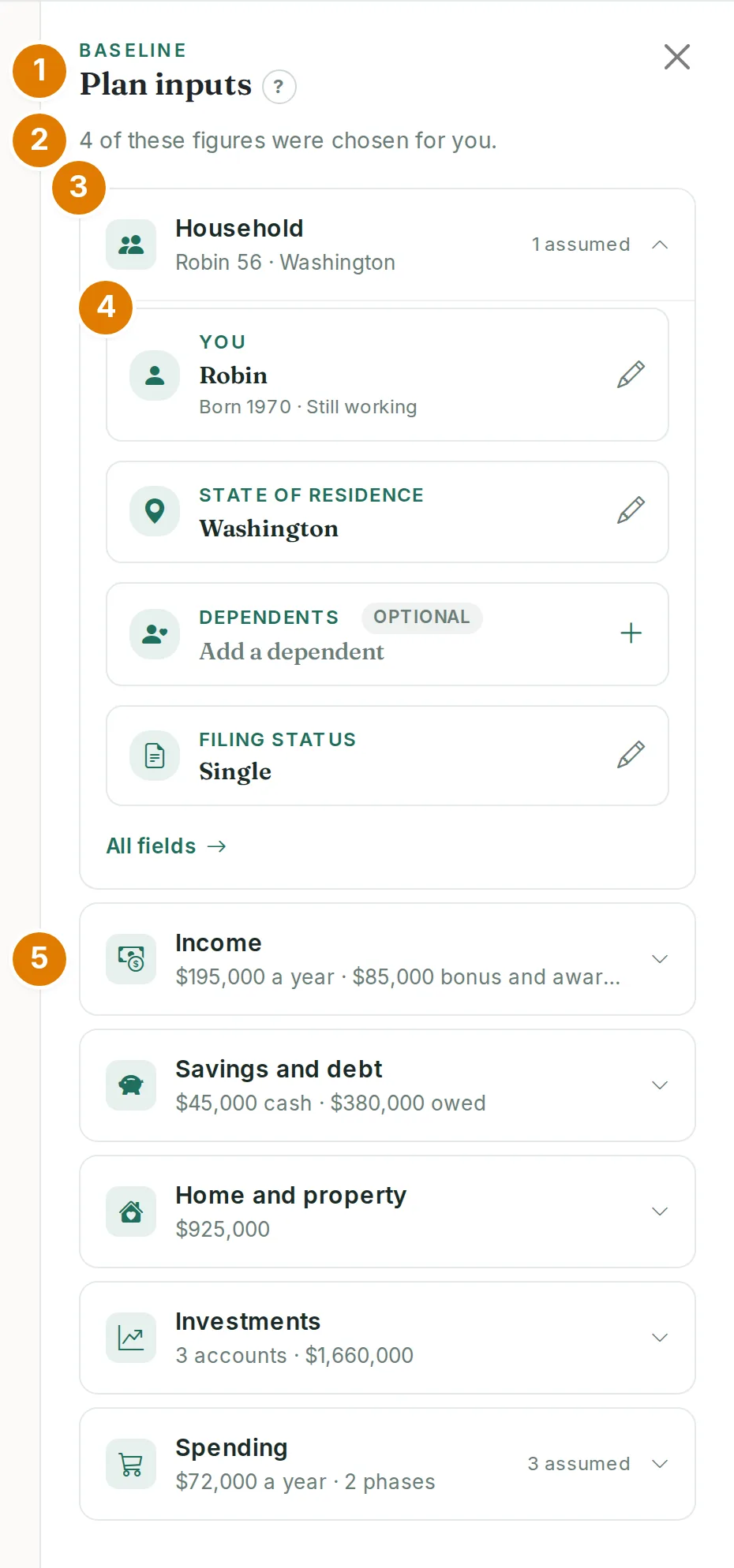
- The plan you are editing, with a ? that opens this article.
- How many figures were chosen for you, which you can replace with your own.
- A group, open. One group for each part of your plan: Household, Home and property, Savings and debt, Investments, Income and Spending. Each shows a one-line summary and how many of its figures are assumed.
- A card. There is one for each person, account, benefit, debt, property or spending phase, and an add button for anything you can have more than one of. Clicking a card opens a form over the page with the main questions first; More detail holds the rest, such as how an account is invested or a spending phase's withdrawal order. A figure the app chose for you is tagged Assumed until you enter your own. A plan for one person has an Add partner card under Household, for when you marry or start planning together; a partner's own form has Remove partner, which takes everything in their name out of the plan.
- The other groups, closed. Click one to open it.
Shortcuts
The Shortcuts list at the top of the panel holds the figures you change most, each one click away. It starts with each person's retirement age and the age each person's Social Security starts. Clicking one opens a small form that asks that figure for everyone in your household, or for every account, at once.
Click Customize to choose what the list shows, such as yearly spending, every balance in one form, what you add to your accounts each year, or how each account is invested and what it is expected to earn. Your choice is the same on every plan.
What you can do here
When you click Save on a form, the change is saved right away. The panel stays open, and every figure behind it updates, the simulated markets included. Recalculating the simulated markets takes a few seconds, so the page is dimmed while it happens. If you click Save without changing anything, nothing is recalculated.