
Getting started
Integers projects your household's money year by year: how long it lasts, how much tax you pay, and what changes if you make different financial decisions. Here is a short tour of where things are.
The screen
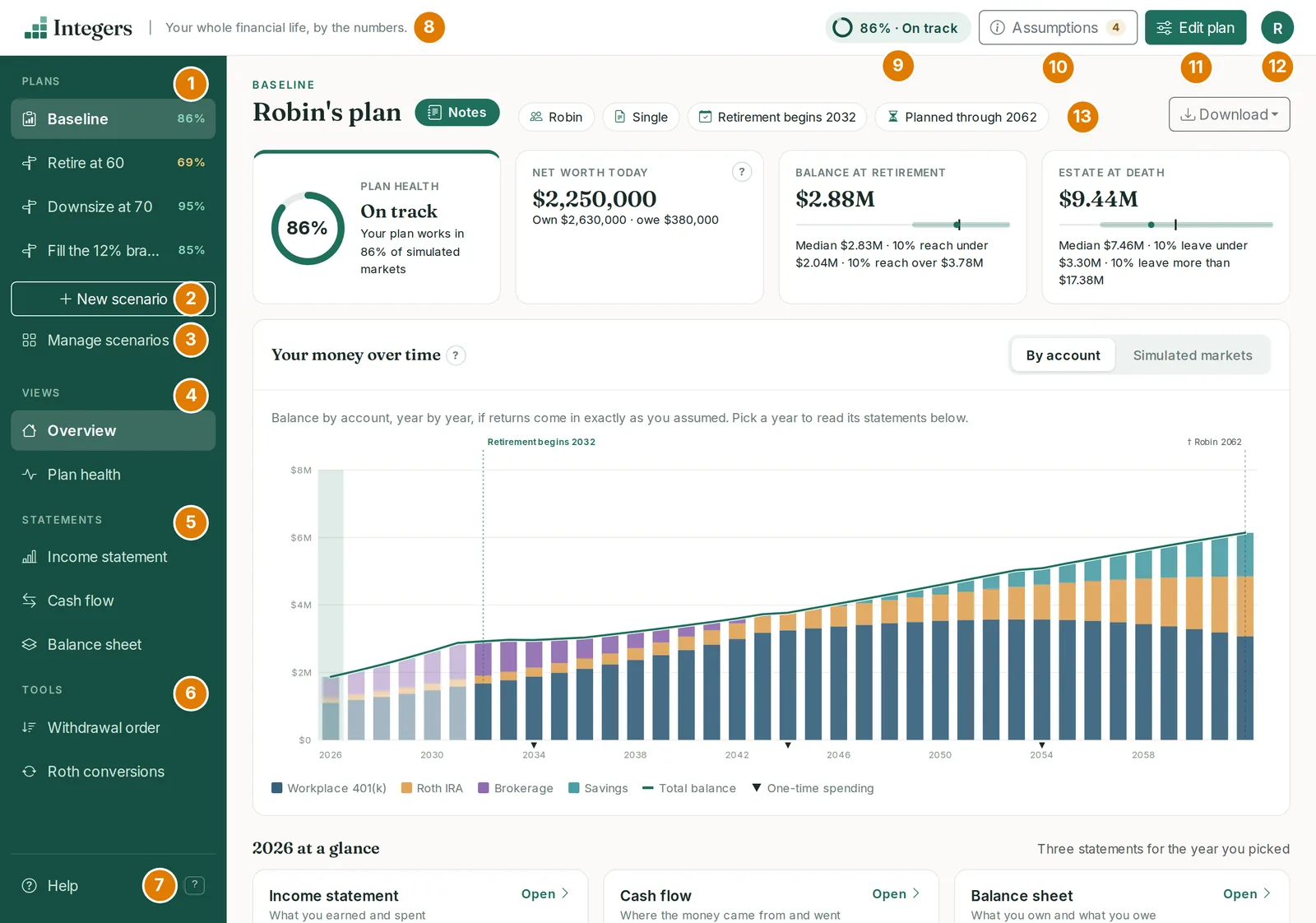
- Plans. Your baseline plan and each scenario, with its success rate. When you switch to another plan, you stay on the same page: if you are reading the Cash flow, you see the other plan's Cash flow.
- New scenario copies your baseline plan into a new scenario. Change the scenario to test a different financial decision, such as retiring later, and your baseline plan stays as it is.
- Manage scenarios shows all of your plans on one page.
- Views. The Overview and Plan health pages. Each shows the plan you have selected under Plans.
- Statements. The Income statement, Cash flow and Balance sheet for any year of the plan you have selected.
- Tools. The Withdrawal order and Roth conversions tools, which search for a better way to run your plan. You can save what they find as a scenario or apply it to your plan.
- Help opens this panel. The ? key opens it from anywhere.
- The logo and tagline. Click the logo to go to your baseline plan's Overview.
- Plan health shows your success rate and its rating: On track, Moderate risk or High risk. Click it to open the Plan health page. It updates by itself each time you save a change to your plan.
- Assumptions shows how many figures the app chose for you. Open it to see and change each one.
- Edit plan opens the panel where you change what you entered.
- Your account opens the account menu, shown below.
- The page you are reading.
The account menu
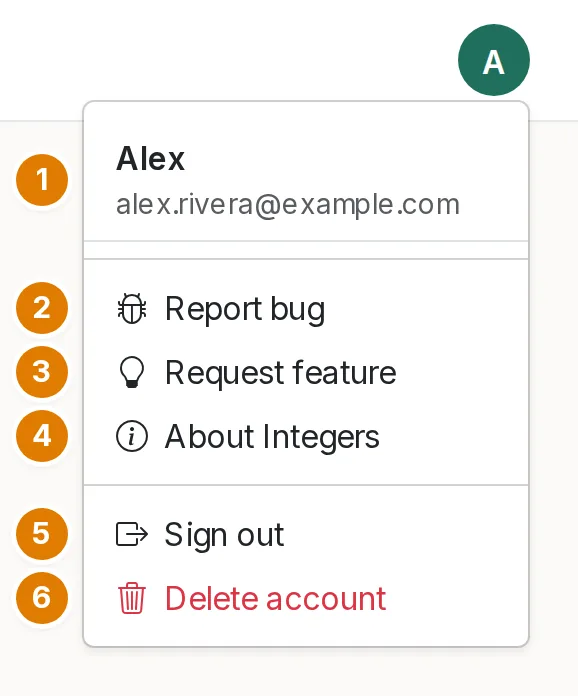
- Your name and email address, from your Google sign-in.
- Report bug sends us a note about something that is not working.
- Request feature sends us an idea for something new.
- About Integers shows which version you are using.
- Sign out ends your session. Your plans stay saved.
- Delete account permanently removes your account and every plan in it. It asks you to confirm first, and it cannot be undone.
Using your plan, step by step
Once setup is done, most visits follow the same path: read your results, look at one year in detail, change what you entered, bring the results up to date, and try a different financial decision. These seven steps walk through that path in order.
1. Read your results
The Overview shows your plan at a glance: plan health, net worth, your money over time and one year's statements. Plan health shows how likely your money is to last, by running your plan through 1,000 simulated markets.
2. Pick a year
Each statement page has a year picker across the top. Use the arrows to move one year at a time, or click any year in the strip. Each person's age that year is shown under it. When you move to another statement or another plan, you stay on the same year.
3. Read that year's statements
The Income statement, Cash flow and Balance sheet show any year of your plan the way a business reports its year. Read what the three statements are to understand how they fit together.
4. Change what you entered
Edit plan in the header opens a panel beside the page, where every part of your plan is a card you can click and change. Statements update as soon as you save. See the Edit plan panel.
5. Replace figures the app chose for you
The number on Assumptions in the header is how many figures the app chose for you. Open it to see each one in a sentence and replace it with your own. See the Assumptions panel.
6. Bring your results up to date
When you save a change, every figure updates, the expected path and the simulated markets alike. The simulated markets take a few seconds to recalculate, so the page is dimmed while they run.
7. Try a different financial decision
When you want to test a different financial decision, such as retiring two years later, click New scenario in the sidebar. See how scenarios work.